How to Let Claude Code Deploy Your Ghost Blog (DNS, VPS, and Ghost API)
A step-by-step guide to letting Claude Code autonomously configure Cloudflare DNS, set up a Hetzner VPS over SSH, deploy Ghost with Traefik, and initialize the blog via the Ghost Admin API — with honest notes on what still needs a human.

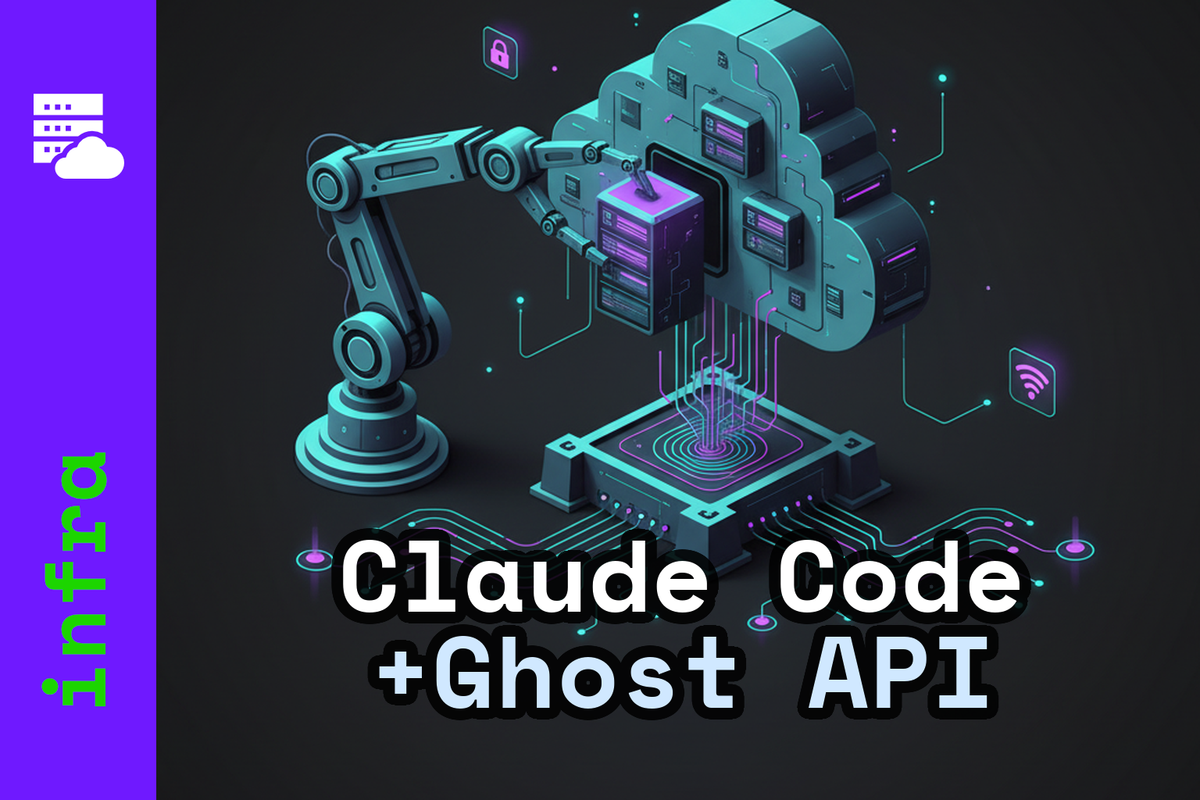
You have a domain. You have a Hetzner account. You want Ghost running on your own server with HTTPS, Cloudflare in front, and a MySQL database behind it. The manual path takes two hours: create the server, SSH in, configure Docker Compose, fight Let's Encrypt, debug Traefik, initialise Ghost through a browser form.
There is another path. Hand the job to Claude Code. Give it your credentials and a task description, and it will configure Cloudflare DNS, deploy the stack over SSH, and initialise Ghost via the Admin API without you touching a terminal. This is how clawstack.run was set up.
This post documents exactly what Claude can do on its own, what still requires a human click, and how to structure the handoff so it works first time.
What Claude Code Can and Cannot Do
Claude Code has access to your filesystem, a terminal, and any API you point it at. That covers most of this deployment. But some things still live behind browser UIs with no API equivalent.
Claude handles autonomously: - Creating Cloudflare DNS A records via API - Generating .env files and Docker Compose configs - SSHing into the server and running commands - Uploading deployment files - Starting Docker containers - Initialising Ghost via the Admin API (creating the admin account, first post, site title) - Debugging failures by reading logs and making corrections
You must do manually (one-time clicks): - Creating the Hetzner server (no Hetzner API key in scope — or you can add one and Claude handles this too) - Setting Cloudflare SSL/TLS mode to Full (Strict) in the dashboard - Retrieving the Ghost Admin API key from the Ghost admin UI after first login
Everything else is automatable. The two manual steps take under five minutes combined.
What You Need Before Starting
- A domain with DNS managed at Cloudflare
- A Cloudflare API token with Zone / DNS / Edit permission, scoped to your domain
- A Hetzner account (or any VPS provider — adjust the IP below)
- An SSH password or key for the server
- Claude Code running locally with filesystem and Bash access
The SSH authentication method doesn't matter. Claude Code will use whatever you have — key file or password via sshpass. If you're using a password, install sshpass first:
sudo apt install sshpass
Step 1 — Create the Server
Go to the Hetzner Cloud Console and create a new server: - Type: CX22 (2 vCPU, 4 GB RAM) — enough for Ghost + MySQL + Traefik - Image: Ubuntu 24.04 - Region: your closest one - SSH key or password: your choice
In the "Cloud config" field, paste your cloud-init.yaml. This installs Docker, creates the deploy user, configures UFW, and sets up fail2ban in one shot. You can use the one from clawstack-configs on GitHub as a starting point.
Note the server's IP address. That's the last thing you need to do manually.
Step 2 — Give Claude Code the Context
Create a CLAUDE.md file in your project directory. This is the brief Claude reads at the start of every session. Include:
# Deployment Context

## Server
- IP: 203.0.113.42
- SSH user: deploy
- SSH auth: password via sshpass / key at ~/.ssh/mykey

## Domain
- Domain: yourdomain.com
- DNS: Cloudflare (token in .env as CLOUDFLARE_TOKEN)

## Stack
- Ghost 5 + MySQL 8 + Traefik (Docker Compose)
- Compose file: deploy/docker-compose.yml
- Deploy directory on server: /opt/ghost

## Credentials
- All secrets in deploy/.env (never commit)
Then create deploy/.env with your actual values:
DOMAIN=yourdomain.com
ACME_EMAIL=you@yourdomain.com
CLOUDFLARE_TOKEN=your_cloudflare_dns_token

DB_NAME=ghost
DB_USER=ghost
DB_PASSWORD=generate_with_openssl_rand_base64_32
DB_ROOT_PASSWORD=generate_with_openssl_rand_base64_32

MAIL_HOST=smtp.fastmail.com
MAIL_PORT=587
MAIL_USER=you@fastmail.com
MAIL_PASS=your_app_password
MAIL_FROM=noreply@yourdomain.com
Generate the DB passwords locally:
openssl rand -base64 32
Step 3 — Configure DNS
Give Claude Code this prompt:
Using the Cloudflare API token in deploy/.env, create the following DNS records
for the domain in .env:
- A record: @ → the server IP in CLAUDE.md
- A record: www → the server IP in CLAUDE.md
- A record: * → the server IP in CLAUDE.md

Use the Cloudflare API at https://api.cloudflare.com/client/v4.
First get the zone ID for the domain, then create each record.
Check for existing records and skip or update as needed.
Claude will call the Cloudflare API, get the zone ID, create the records, and confirm each one. The whole thing takes about thirty seconds.
If you have email records (MX, DKIM, SPF) from a provider like FastMail, tell Claude those too. It can create them in the same pass.
After DNS propagation (usually under five minutes with Cloudflare), set the SSL/TLS mode manually:
Cloudflare Dashboard → yourdomain.com → SSL/TLS → Overview → Full (Strict)
This is the one click that cannot be automated with a scoped DNS token.
Step 4 — Deploy the Stack
Once DNS is up and the server is running, give Claude the deployment prompt:
Deploy the Ghost stack to the server documented in CLAUDE.md.

1. Upload deploy/docker-compose.yml and deploy/.env to /opt/ghost on the server
2. SSH in and create the traefik/ directory with an empty acme.json (chmod 600)
3. Run: docker compose up -d
4. Wait 30 seconds, then check: docker compose ps
5. Check Ghost logs for any startup errors: docker compose logs --tail=50 ghost
6. If everything looks healthy, report the container statuses
Claude will SSH in, upload the files, start the containers, and read the logs. If something goes wrong — and the first deploy often has a small issue — Claude will diagnose it and apply the fix. The five most common failures are documented in Ghost Behind Cloudflare and Traefik: The Complete Working Setup.
The most likely ones: missing @docker suffix on Traefik middleware references, wrong Cloudflare token variable name, or the Docker network name prefix not matching the compose project directory name.
Step 5 — Initialise Ghost via the Admin API
Ghost ships with a one-time setup endpoint. Until you call it, the blog is in "uninitialised" state — no admin account exists. You can do this through the browser at /ghost, or let Claude do it via API.
Give Claude this prompt:
Initialise Ghost at https://yourdomain.com using the Admin API setup endpoint.
Create an admin account with:
- name: Admin
- email: you@yourdomain.com
- password: (generate a strong one and tell me what it is)
- blogTitle: Your Blog Title

POST to: https://yourdomain.com/ghost/api/admin/authentication/setup
Check the response for success and report the result.
Claude will call the endpoint and return the confirmation. The response includes a user object — the admin account is live.
# What Claude runs under the hood:
curl -s -X POST https://yourdomain.com/ghost/api/admin/authentication/setup \
  -H "Content-Type: application/json" \
  -d '{
    "setup": [{
      "name": "Admin",
      "email": "you@yourdomain.com",
      "password": "YourPassword123!",
      "blogTitle": "Your Blog Title"
    }]
  }'
If the endpoint returns a 403, Ghost is already initialised (someone got there first — possibly you testing the URL in a browser). If it returns a connection error, the containers aren't up yet.
Step 6 — Get the Admin API Key
Log into Ghost admin at https://yourdomain.com/ghost with the credentials Claude just created.
Go to: Settings → Integrations → Add custom integration
Name it anything — "Automation" works. Ghost will show you an Admin API key in id:hexsecret format. Save it to deploy/.env as GHOST_ADMIN_KEY.
From this point, Claude can create posts, upload images, manage tags, and publish drafts entirely through the API — no browser required.
Verifying the Setup
Once everything is deployed, ask Claude to run the verification checklist:
Run the following checks and report the HTTP status code for each:

1. curl -s https://yourdomain.com/ -o /dev/null -w "%{http_code}"   → should be 200
2. curl -s https://www.yourdomain.com/ -o /dev/null -w "%{http_code}"  → should be 301
3. curl -s http://yourdomain.com/ -o /dev/null -w "%{http_code}"    → should be 301
4. curl -sv https://yourdomain.com/ 2>&1 | grep issuer   → should say Let's Encrypt

Also check:
5. docker compose ps   → all containers should be Up
6. docker compose logs traefik | grep -i error   → should be empty
If step 1 returns 000 or hangs, there is a Traefik routing issue. If it returns 301, the Ghost redirect loop is active — see the Traefik post for the fix. If step 4 shows a Cloudflare certificate instead of Let's Encrypt, DNS-01 challenge hasn't completed yet or the CLOUDFLARE_TOKEN variable is named wrong.
The Full Prompt for a Clean Server
If you want to hand the entire job to Claude in one go — DNS, deploy, and Ghost initialisation — here is the prompt. Assumes CLAUDE.md is written and .env is ready:
Deploy Ghost to the server documented in CLAUDE.md. Do the following in order:

1. Use the Cloudflare API to create A records for @, www, and * pointing to the server IP.
   Check for existing records first; update if present, create if not.

2. Upload deploy/docker-compose.yml and deploy/.env to /opt/ghost on the server.
   Create /opt/ghost/traefik/acme.json with chmod 600.

3. SSH in and run: docker compose up -d
   Wait 45 seconds, then check docker compose ps and docker compose logs ghost.
   Fix any startup errors before continuing.

4. Once all containers are healthy, initialise Ghost via POST to
   /ghost/api/admin/authentication/setup with the credentials below.
   Tell me the password you generate.

5. Confirm the site returns HTTP 200 at https://[DOMAIN]/.
   Report any failures with the relevant log output.

Admin credentials to create:
- email: you@yourdomain.com
- blogTitle: Your Blog Title
Claude will work through the list, report status after each step, and stop to ask if something requires a decision. On a clean server with correct credentials, the whole deployment takes about four minutes.
Using an AI to Debug the Deployment
If something breaks during a deployment Claude is running, the fastest path is to paste both this post and the Ghost + Traefik + Cloudflare bugs post into the conversation. Together they cover every failure mode we've hit. Claude will cross-reference the error in the logs against the documented patterns and tell you exactly which label is wrong or which environment variable is missing.
Where to Run This
Hetzner CX22 is the machine this runs on. €4.85/month, two vCPUs, 4 GB RAM. The deploy user has no password by default — cloud-init locks it — so Claude authenticates by key or the temporary password you set during server creation.
If the goal is an AI assistant that can manage the server autonomously after setup — restart containers, create posts, monitor logs — xCloud hosts OpenClaw managed. You get the same autonomous operations without maintaining the server yourself. The deployment described in this post is what xCloud is running under the hood.
(Affiliate links — we get a small cut if you sign up, at no cost to you.)
Resources
- Ghost Admin API setup endpoint: ghost.org/docs/admin-api
- Cloudflare API (DNS records): developers.cloudflare.com
- cloud-init reference: cloudinit.readthedocs.io
- Five Traefik/Cloudflare bugs you'll hit: Ghost Behind Cloudflare and Traefik
German Version (Deutsch)
Metadaten
- Titel: Ghost mit Claude Code deployen: DNS, VPS und Ghost API automatisiert
- Slug: claude-code-ghost-deployment-de
- Beschreibung: Schritt-für-Schritt-Anleitung, um Claude Code Cloudflare DNS konfigurieren, einen Hetzner VPS per SSH einrichten, Ghost mit Traefik deployen und den Blog über die Ghost Admin API initialisieren zu lassen — mit ehrlichen Hinweisen, was noch ein Mensch tun muss.
- Tags: claude-code, ghost, cloudflare, hetzner, docker, automation, selbst-gehostet, infra
- Pillar: /openclaw/
- Language: de
- Reading Time: 10 min
Inhalt
Du hast eine Domain. Du hast einen Hetzner-Account. Du willst Ghost auf deinem eigenen Server mit HTTPS, Cloudflare davor und einer MySQL-Datenbank dahinter. Der manuelle Weg dauert zwei Stunden: Server erstellen, per SSH einloggen, Docker Compose konfigurieren, mit Let's Encrypt kämpfen, Traefik debuggen, Ghost durch ein Browser-Formular initialisieren.
Es gibt einen anderen Weg. Übergib den Job an Claude Code. Gib ihm deine Zugangsdaten und eine Aufgabenbeschreibung — es konfiguriert Cloudflare DNS, deployt den Stack per SSH und initialisiert Ghost über die Admin API, ohne dass du ein Terminal anfassen musst. So wurde clawstack.run aufgesetzt.
Dieser Post dokumentiert genau, was Claude eigenständig tun kann, was noch einen menschlichen Klick erfordert, und wie du die Übergabe strukturierst, damit es beim ersten Versuch funktioniert.
Was Claude Code kann und was nicht
Claude Code hat Zugriff auf dein Dateisystem, ein Terminal und jede API, auf die du es hinweist. Das deckt den Großteil dieses Deployments ab. Einige Dinge befinden sich aber noch hinter Browser-UIs ohne API-Äquivalent.
Claude erledigt selbstständig: - Cloudflare DNS A-Records per API anlegen - .env-Dateien und Docker Compose Configs erstellen - Per SSH auf den Server zugreifen und Befehle ausführen - Deployment-Dateien hochladen - Docker Container starten - Ghost per Admin API initialisieren (Admin-Account, erster Post, Seitentitel) - Fehler durch Log-Analyse diagnostizieren und beheben
Manuelle Schritte (einmalige Klicks): - Hetzner Server erstellen (oder Hetzner API Key bereitstellen, dann kann Claude das auch) - Cloudflare SSL/TLS-Modus auf Full (Strict) setzen im Dashboard - Ghost Admin API Key aus dem Ghost Admin UI auslesen nach dem ersten Login
Alles andere ist automatisierbar. Die zwei manuellen Schritte dauern zusammen unter fünf Minuten.
Voraussetzungen
- Eine Domain mit DNS bei Cloudflare
- Ein Cloudflare API Token mit Zone / DNS / Edit-Berechtigung, auf deine Domain beschränkt
- Ein Hetzner-Account (oder anderer VPS-Anbieter — IP unten anpassen)
- SSH-Passwort oder Key für den Server
- Claude Code lokal mit Dateisystem- und Bash-Zugriff
Die SSH-Authentifizierungsmethode spielt keine Rolle. Claude Code verwendet was du hast — Key-Datei oder Passwort via sshpass. Bei Passwort-Authentifizierung zuerst installieren:
sudo apt install sshpass
Schritt 1 — Server erstellen
In der Hetzner Cloud Console einen neuen Server anlegen: - Typ: CX22 (2 vCPU, 4 GB RAM) — reicht für Ghost + MySQL + Traefik - Image: Ubuntu 24.04 - Region: nächstgelegene - SSH Key oder Passwort: nach Wahl
Im Feld "Cloud config" das cloud-init.yaml einfügen. Das installiert Docker, legt den Deploy-User an, konfiguriert UFW und richtet fail2ban ein. Als Ausgangspunkt eignet sich die Datei aus clawstack-configs auf GitHub.
Die IP-Adresse des Servers notieren. Das ist die letzte manuelle Aktion.
Schritt 2 — Claude Code den Kontext geben
Eine CLAUDE.md-Datei im Projektverzeichnis anlegen. Das ist das Briefing, das Claude zu Beginn jeder Session liest:
# Deployment Context

## Server
- IP: 203.0.113.42
- SSH-User: deploy
- SSH-Auth: Passwort via sshpass / Key unter ~/.ssh/mykey

## Domain
- Domain: yourdomain.com
- DNS: Cloudflare (Token in .env als CLOUDFLARE_TOKEN)

## Stack
- Ghost 5 + MySQL 8 + Traefik (Docker Compose)
- Compose-Datei: deploy/docker-compose.yml
- Deploy-Verzeichnis auf Server: /opt/ghost

## Zugangsdaten
- Alle Secrets in deploy/.env (nie committen)
Dann deploy/.env mit den echten Werten anlegen:
DOMAIN=yourdomain.com
ACME_EMAIL=du@yourdomain.com
CLOUDFLARE_TOKEN=dein_cloudflare_dns_token

DB_NAME=ghost
DB_USER=ghost
DB_PASSWORD=mit_openssl_rand_base64_32_generieren
DB_ROOT_PASSWORD=mit_openssl_rand_base64_32_generieren

MAIL_HOST=smtp.fastmail.com
MAIL_PORT=587
MAIL_USER=du@fastmail.com
MAIL_PASS=dein_app_passwort
MAIL_FROM=noreply@yourdomain.com
DB-Passwörter lokal generieren:
openssl rand -base64 32
Schritt 3 — DNS konfigurieren
Claude Code diesen Prompt geben:
Lege mit dem Cloudflare API Token aus deploy/.env folgende DNS-Records
für die Domain in .env an:
- A-Record: @ → Server-IP aus CLAUDE.md
- A-Record: www → Server-IP aus CLAUDE.md
- A-Record: * → Server-IP aus CLAUDE.md

Cloudflare API: https://api.cloudflare.com/client/v4
Zuerst die Zone-ID für die Domain abrufen, dann jeden Record anlegen.
Vorhandene Records prüfen und ggf. aktualisieren statt doppelt anlegen.
Claude ruft die Cloudflare API auf, ermittelt die Zone-ID, legt die Records an und bestätigt jeden einzelnen. Das dauert etwa dreißig Sekunden.
Nach DNS-Propagation (mit Cloudflare meist unter fünf Minuten) den SSL-Modus manuell setzen:
Cloudflare Dashboard → yourdomain.com → SSL/TLS → Übersicht → Full (Strict)
Das ist der eine Klick, der mit einem beschränkten DNS-Token nicht automatisierbar ist.
Schritt 4 — Stack deployen
Wenn DNS aktiv und der Server bereit ist:
Deploye den Ghost-Stack auf den in CLAUDE.md dokumentierten Server.

1. deploy/docker-compose.yml und deploy/.env nach /opt/ghost hochladen
2. Per SSH einloggen und /opt/ghost/traefik/acme.json anlegen (chmod 600)
3. docker compose up -d ausführen
4. 30 Sekunden warten, dann docker compose ps prüfen
5. Ghost-Logs auf Startfehler prüfen: docker compose logs --tail=50 ghost
6. Bei gesundem Status alle Container-Zustände melden
Claude loggt per SSH ein, lädt die Dateien hoch, startet die Container und liest die Logs. Wenn etwas schiefläuft — beim ersten Deploy oft eine Kleinigkeit — diagnostiziert Claude es und behebt es. Die fünf häufigsten Fehler sind in Ghost hinter Cloudflare und Traefik dokumentiert.
Schritt 5 — Ghost per Admin API initialisieren
Ghost hat einen einmaligen Setup-Endpoint. Bis er aufgerufen wird, existiert kein Admin-Account. Das geht über den Browser unter /ghost oder per API:
Initialisiere Ghost unter https://yourdomain.com über den Admin API Setup-Endpoint.
Admin-Account erstellen:
- name: Admin
- email: du@yourdomain.com
- password: (generiere ein starkes Passwort und teile es mir mit)
- blogTitle: Dein Blog-Titel

POST an: https://yourdomain.com/ghost/api/admin/authentication/setup
Antwort auf Erfolg prüfen und melden.
# Was Claude im Hintergrund ausführt:
curl -s -X POST https://yourdomain.com/ghost/api/admin/authentication/setup \
  -H "Content-Type: application/json" \
  -d '{
    "setup": [{
      "name": "Admin",
      "email": "du@yourdomain.com",
      "password": "DeinPasswort123!",
      "blogTitle": "Dein Blog-Titel"
    }]
  }'
Bei 403: Ghost ist bereits initialisiert. Bei Connection Error: Container laufen noch nicht.
Schritt 6 — Admin API Key auslesen
Im Ghost Admin unter https://yourdomain.com/ghost einloggen.
Einstellungen → Integrationen → Eigene Integration hinzufügen
Den Admin API Key im Format id:hexsecret in deploy/.env als GHOST_ADMIN_KEY speichern.
Ab jetzt kann Claude Beiträge erstellen, Bilder hochladen, Tags verwalten und Entwürfe veröffentlichen — ohne Browser.
Setup verifizieren
Folgende Checks ausführen und HTTP-Statuscodes melden:

1. curl -s https://yourdomain.com/ -o /dev/null -w "%{http_code}"        → 200 erwartet
2. curl -s https://www.yourdomain.com/ -o /dev/null -w "%{http_code}"    → 301 erwartet
3. curl -s http://yourdomain.com/ -o /dev/null -w "%{http_code}"         → 301 erwartet
4. curl -sv https://yourdomain.com/ 2>&1 | grep issuer                   → Let's Encrypt erwartet

Außerdem:
5. docker compose ps   → alle Container Up
6. docker compose logs traefik | grep -i error   → leer erwartet
Der vollständige Prompt für einen sauberen Server
Deploye Ghost auf den in CLAUDE.md dokumentierten Server. In dieser Reihenfolge:

1. Cloudflare API: A-Records für @, www und * auf die Server-IP setzen.
   Vorhandene Records prüfen; aktualisieren wenn vorhanden, anlegen wenn nicht.

2. deploy/docker-compose.yml und deploy/.env nach /opt/ghost hochladen.
   /opt/ghost/traefik/acme.json anlegen mit chmod 600.

3. Per SSH: docker compose up -d
   45 Sekunden warten, dann docker compose ps und docker compose logs ghost prüfen.
   Startfehler beheben bevor weiter.

4. Nach gesundem Start Ghost per POST an
   /ghost/api/admin/authentication/setup initialisieren.
   Generiertes Passwort mitteilen.

5. Bestätigen dass https://[DOMAIN]/ HTTP 200 zurückgibt.
   Bei Fehlern: relevante Log-Ausgabe melden.

Admin-Zugangsdaten:
- email: du@yourdomain.com
- blogTitle: Dein Blog-Titel
Bei korrekten Zugangsdaten dauert das komplette Deployment auf einem sauberen Server etwa vier Minuten.
KI zum Debuggen einsetzen
Wenn während eines Deployments etwas schiefläuft, füge diesen Post und den Ghost + Traefik + Cloudflare Bugs Post in die Konversation ein. Zusammen decken sie jeden Fehler ab, auf den ich gestoßen bin. Claude gleicht den Fehler in den Logs mit den dokumentierten Mustern ab und sagt dir genau, welches Label falsch ist oder welche Umgebungsvariable fehlt.
Wo das läuft
Hetzner CX22 — €4,85/Monat, zwei vCPUs, 4 GB RAM. Der Deploy-User hat standardmäßig kein Passwort — cloud-init sperrt es — Claude authentifiziert sich per Key oder temporärem Passwort aus der Server-Erstellung.
Wer einen KI-Assistenten will, der den Server nach dem Setup eigenständig verwalten kann — Container neu starten, Beiträge erstellen, Logs überwachen — xCloud hostet OpenClaw managed. Was in diesem Post beschrieben ist, läuft bei xCloud unter der Haube.
(Affiliate-Links — ich bekomme eine kleine Provision, wenn du dich anmeldest, ohne Mehrkosten für dich.)
Ressourcen
- Ghost Admin API Setup: ghost.org/docs/admin-api
- Cloudflare API DNS Records: developers.cloudflare.com
- cloud-init Referenz: cloudinit.readthedocs.io
- Fünf Traefik/Cloudflare-Bugs: Ghost hinter Cloudflare und Traefik
Publishing Notes
SEO keywords targeted: - "Claude Code deploy Ghost" - "automate Ghost deployment" - "Ghost VPS setup automated" - "Cloudflare DNS API automation" - "Ghost Admin API setup endpoint" - (DE) "Ghost automatisch deployen" - (DE) "Claude Code Ghost einrichten"
Internal links: - Links to post 02 (Ghost + Traefik + Cloudflare bugs) in two places - References clawstack-configs GitHub repo (to be created)
Note: cloud-init.yaml in this repo contains root@stadicus.com in the SSH key comment — strip before publishing or replace with neutral key comment.