OpenClaw on a VPS: secure deploy with Docker and Tailscale
Deploy OpenClaw on a Linux VPS with Docker Compose, bind ports to localhost only, and access safely via SSH tunnels or Tailscale Serve.

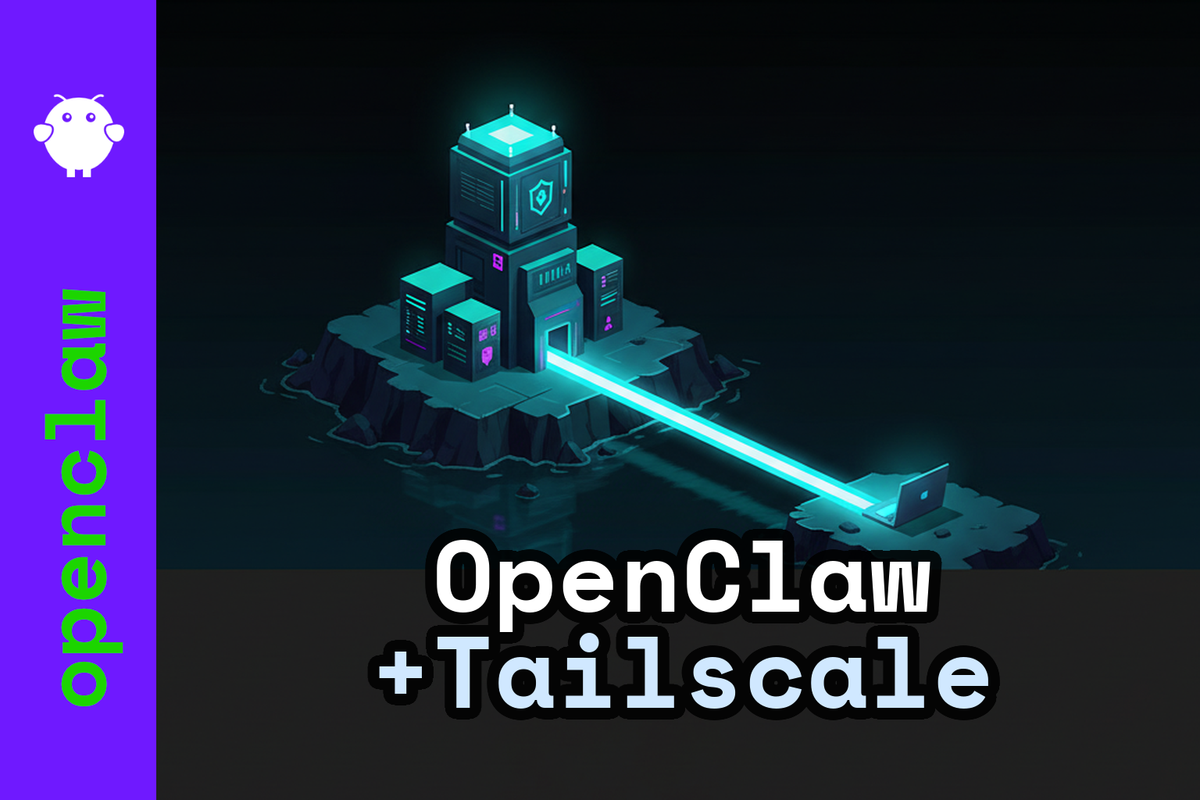
OpenClaw on a VPS is mostly an ops problem, not an AI problem. You want one always-on Gateway that owns your state, sessions, and channels — but you don't want that Gateway reachable from the public internet.
The pattern: run OpenClaw in Docker, publish its ports only on 127.0.0.1, then reach it through an SSH tunnel or a Tailscale tailnet.
Why the defaults will bite you
OpenClaw's Gateway is a single long-running service. It handles routing, the Control UI, WebSocket RPC, and HTTP APIs over one multiplexed port — default 18789. The non-Docker install binds to loopback by default. Auth is required out of the box via token or password.
Docker's defaults are less forgiving. The docker-setup.sh script sets OPENCLAW_GATEWAY_BIND=lan so that host-published ports actually work. If you set it to loopback, only processes inside the container's network namespace can connect — your host-published port goes dead.
The secure compromise: keep OPENCLAW_GATEWAY_BIND=lan inside the container, but bind the host-side port publishing to 127.0.0.1. Nothing hits 0.0.0.0, and the container networking still works.
Docker port publishing bypasses ufw and firewalld. Assume your firewall is not the only control.
Provision the VPS
The commands below assume Ubuntu 24.04 LTS with root SSH access. A Hetzner CX22 at €4.85/month with €10 starting credit handles this fine — it's what this blog runs on.
Create a non-root user and lock down SSH:
adduser openclaw
usermod -aG sudo openclaw
mkdir -p /home/openclaw/.ssh
chmod 700 /home/openclaw/.ssh

# Paste your public key
nano /home/openclaw/.ssh/authorized_keys

chmod 600 /home/openclaw/.ssh/authorized_keys
chown -R openclaw:openclaw /home/openclaw/.ssh
Harden SSH with a drop-in file:
nano /etc/ssh/sshd_config.d/99-openclaw-hardening.conf
PasswordAuthentication no
KbdInteractiveAuthentication no
PermitRootLogin no
PubkeyAuthentication yes
AllowUsers openclaw
sshd -t
systemctl reload ssh
Set up ufw as a baseline. This does not replace correct Docker port binding — Docker will happily punch through it.
apt update && apt upgrade -y
apt install -y ufw git curl ca-certificates

ufw default deny incoming
ufw default allow outgoing
ufw allow 22/tcp
ufw enable
Install Docker Engine
Use Docker's official apt repo so you get docker-compose-plugin and actual updates:
sudo apt remove -y \
  $(dpkg --get-selections docker.io docker-compose docker-compose-v2 \
    docker-doc podman-docker containerd runc 2>/dev/null | cut -f1) \
  || true

sudo apt install -y ca-certificates curl
sudo install -m 0755 -d /etc/apt/keyrings
sudo curl -fsSL https://download.docker.com/linux/ubuntu/gpg \
  -o /etc/apt/keyrings/docker.asc
sudo chmod a+r /etc/apt/keyrings/docker.asc

sudo tee /etc/apt/sources.list.d/docker.sources >/dev/null <<'EOF'
Types: deb
URIs: https://download.docker.com/linux/ubuntu
Suites: $(. /etc/os-release && echo "${UBUNTU_CODENAME:-$VERSION_CODENAME}")
Components: stable
Signed-By: /etc/apt/keyrings/docker.asc
EOF

sudo apt update
sudo apt install -y docker-ce docker-ce-cli containerd.io \
  docker-buildx-plugin docker-compose-plugin
sudo systemctl enable --now docker
Adding your user to the docker group grants root-equivalent privileges. On a VPS, sudo docker ... is usually the right tradeoff.
Deploy OpenClaw with localhost-only ports
Clone the repo and work from its root:
sudo -iu openclaw
mkdir -p ~/src && cd ~/src
git clone https://github.com/openclaw/openclaw.git
cd openclaw
Create an .env that pins your paths and uses the official image from GitHub Container Registry:
# .env
OPENCLAW_CONFIG_DIR=/home/openclaw/.openclaw
OPENCLAW_WORKSPACE_DIR=/home/openclaw/.openclaw/workspace
OPENCLAW_IMAGE=ghcr.io/openclaw/openclaw:latest
OPENCLAW_GATEWAY_BIND=lan
OPENCLAW_GATEWAY_PORT=18789
OPENCLAW_BRIDGE_PORT=18790
OPENCLAW_GATEWAY_TOKEN=
Now the security step that matters. Create docker-compose.override.yml to bind published ports to 127.0.0.1 only:
# docker-compose.override.yml
services:
  openclaw-gateway:
    ports:
      - "127.0.0.1:18789:18789"
      - "127.0.0.1:18790:18790"
Without the 127.0.0.1: prefix, Compose binds to all interfaces. That's 0.0.0.0. That's the internet.
Pull, onboard, and start:
docker compose pull

docker compose run --rm openclaw-cli onboard

docker compose -f docker-compose.yml -f docker-compose.override.yml \
  up -d openclaw-gateway
Sanity-check:
docker compose ps

docker compose run -T --rm openclaw-cli gateway probe
The -T flag avoids pseudo-TTY noise — useful for scripts and CI.
At this point, http://127.0.0.1:18789 works on the VPS itself. It's unreachable from anywhere else. That's the goal.
Survive reboots with systemd
sudo nano /etc/systemd/system/openclaw-compose.service
[Unit]
Description=OpenClaw (Docker Compose)
Requires=docker.service
After=docker.service

[Service]
Type=oneshot
RemainAfterExit=yes
WorkingDirectory=/home/openclaw/src/openclaw
ExecStart=/usr/bin/docker compose \
  -f docker-compose.yml -f docker-compose.override.yml up -d
ExecStop=/usr/bin/docker compose \
  -f docker-compose.yml -f docker-compose.override.yml down
TimeoutStartSec=0

[Install]
WantedBy=multi-user.target
sudo systemctl daemon-reload
sudo systemctl enable --now openclaw-compose.service
Remote access: SSH tunnel or Tailscale
You have a Gateway bound to loopback on a VPS. You need to reach it from your laptop. Two options, different tradeoffs.
| Method | What's public | Friction | Best for |
|---|---|---|---|
| SSH tunnel | Port 22 | Must keep a session alive; awkward on mobile | One or two machines, no extra dependencies |
| Tailscale Serve | Nothing | Extra daemon, but then hands-off | Multiple devices, always-on access |
| Direct exposure | An HTTPS endpoint | TLS, auth, reverse proxy, patching | Only if you truly need public access |
SSH tunnel
From your laptop:
ssh -N -L 18789:127.0.0.1:18789 openclaw@203.0.113.10
Then open http://127.0.0.1:18789 locally.
Add SSH keepalives in your local ~/.ssh/config if you want the tunnel to survive laptop sleep.
Tailscale Serve
Install Tailscale on the VPS:
curl -fsSL https://tailscale.com/install.sh | sh
sudo tailscale up
Expose OpenClaw inside your tailnet with automatic TLS:
sudo tailscale serve --bg --https=443 localhost:18789
sudo tailscale serve status
Tailscale Serve reverse-proxies a local port into your tailnet with auto-provisioned HTTPS certificates. TLS terminates at tailscaled. No public ports, no cert management.
If you also want to drop the public SSH port entirely, Tailscale SSH can handle authentication and authorisation for SSH connections inside your tailnet.
Hardening checklist
The part most guides skip.
Docker and container
OpenClaw's default image runs as the non-root node user. Start there and add:
| Control | Where | What it buys you |
|---|---|---|
Bind ports to 127.0.0.1 |
Compose ports |
No 0.0.0.0 exposure, no firewall bypass surprises |
cap_drop: [ALL] |
Compose | Drops kernel capabilities you don't need |
no-new-privileges:true |
Compose security_opt |
Blocks privilege escalation via setuid binaries |
| Default seccomp profile | Docker default | Syscall allowlist; don't override without reason |
| Default AppArmor profile | Docker default | docker-default profile is moderately protective |
The openclaw-cli container shares a network namespace with the gateway (network_mode: "service:openclaw-gateway"). Treat it as a shared trust boundary, not isolation.
SSH
Keep PasswordAuthentication no, PermitRootLogin no, and AllowUsers locked to the one account that needs access. That's the floor.
Tailscale
Use tailnet access controls to restrict which users and devices can reach the VPS. ACLs or grants — either works, but enforce something. Treat Tailscale as an identity layer, not a magic shield.
Skills and supply chain
If you install third-party skills, you're running third-party code inside a tool-capable agent. There's been credible reporting of malicious OpenClaw skills distributing malware and stealing secrets.
The only rule: don't install what you wouldn't run as a normal program on the same box.
Troubleshooting
Control UI works on the VPS but not remotely. Correct. It's bound to 127.0.0.1. You need SSH or Tailscale — that's the whole point.
Set OPENCLAW_GATEWAY_BIND=loopback in Docker, host port stopped working. Expected. Loopback inside the container namespace isn't the same as loopback on the host. Use lan in the container, restrict exposure with 127.0.0.1 in Compose port mappings.
"Disconnected (1008): pairing required" or "unauthorized" in the browser.
docker compose run --rm openclaw-cli dashboard --no-open
docker compose run --rm openclaw-cli devices list
docker compose run --rm openclaw-cli devices approve <requestId>
Published ports bypass UFW. Yes. Docker manipulates iptables directly. Binding to 127.0.0.1 in Compose is the fix, not a firewall rule.
Gateway refuses to start. OpenClaw enforces strict config validation. Non-loopback binding without auth is a common failure mode.
docker compose run -T --rm openclaw-cli doctor
docker compose logs --no-log-prefix --tail=200 openclaw-gateway
Which port do I forward? 18789. That's the Gateway's default multiplexed port for the Control UI and APIs.
What should I back up? The host paths mapped to config and workspace — typically ~/.openclaw/ and ~/.openclaw/workspace. Don't rely on the container's writable layer.
AI-pointer note
If you're debugging this setup with an AI assistant, paste the URL of this post into the conversation. It gives the model the exact stack context: Docker Compose with localhost-only port binding, lan vs loopback Gateway bind in Docker, and access via ssh -L or tailscale serve.
Where to run this
A boring VPS is the right call. I run similar always-on Docker stacks on Hetzner — CX22 at €4.85/month with €10 starting credit. It does what you need and nothing you don't.
If you'd rather not debug Docker port bindings at 1am, xCloud does managed OpenClaw hosting. You pay more and sleep better.
If you want a second VPS option or you're comparing providers, Vultr gives $35 in referral credit and has a wide region list.
(Affiliate links — I get a small cut if you sign up, at no cost to you.)